Sketch Pro: Draw & Create Art
- 4.6
- Rating
- 1.00M
- Installs
- Free
- Price

 Analysis by App-foxy
When I first opened Sketch Pro: Draw & Create Art, I approached it as someone who wanted to draw without turning a phone or tablet into a complicated studio. That is the app’s strongest appeal: it gives beginners a direct place to sketch, paint, and experiment with anime and manga-inspired artwork. It is a free Art & Design app from 4Axis Technologies, aimed at everyone, and it feels more approachable than many professional illustration tools that greet new users with crowded panels and unfamiliar terminology.
I would not describe it as a replacement for every serious digital art program. Instead, I see it as a practical starting point for people who want to practise character faces, test colour ideas, or make a quick drawing while travelling. The app has reached more than a million installs and holds a 4.6 average from roughly fourteen thousand ratings, which matches my impression that its main strength is accessibility rather than an overwhelming list of advanced studio features.
What to expect before you begin drawing
The store summary presents Sketch Pro as a digital illustration pad for anime and manga art, and that focus matters. You can use it for other subjects, but the experience makes the most sense if you enjoy line art, expressive eyes, character sketches, simple portraits, and colourful fan-art-style practice. I found the app most useful when I treated it as a place to build a drawing gradually instead of expecting an automatic art generator or a finished illustration after a few taps.
You May Also Like

 Blood Strike: 2.5 Anniversary
Blood Strike’s Loadouts Turn Every Drop Into a Tactical Gamble
A close look at Blood Strike’s custom loadouts: how fast access to signature weapons reshapes its battle royale rhythm, rewards preparation, and narrows the gap between fights.

 Pandora - Music & Podcasts
Pandora’s Music Is Easy to Start, but Harder to Recover
Pandora’s strength is its low-effort path from a seed to a station. Its weak spot is how much confidence it asks you to place in connection, setup, and quiet recovery.

 8 Ball Pool
 Is Built on Rivalries, Rematches, and Routine
A close look at the rivalries, rematches, shared routines, and unanswered safety questions that turn a quick pool match into a persistent mobile community.

 Samsung Music
’s Quiet Strength Is Playing What You Already Own
Its reach comes less from spectacle than from dependable access to a personal library. That simplicity is both the app’s strongest retention engine and its ceiling.

 AccuWeather: Weather Radar
AccuWeather Review: A Quick, Clear Forecast for Everyday Decisions
For everyday plans, the best forecast is the one you can understand quickly. AccuWeather makes rain timing, radar, and local conditions easy to act on, with a few trade-offs.

 Hill Climb Racing
Why Hill Climb Racing Still Turns Crashes Into One More Run
A tiny car, a bumpy hill and one more upgrade: Hill Climb Racing keeps resurfacing because its simple chaos makes every near-miss feel personal.
More From Our News Desk



The free download makes it easy to try without committing money first. There are in-app purchases ranging from $0.99 to $19.99 per item, so I would spend time with the basic workflow before buying anything. That is especially important for a first-time user: the value depends less on how many tools appear on screen and more on whether the drawing surface feels comfortable on your particular device.
Sketch Pro runs on Android devices using version 8.0 or later. On a larger screen, the drawing area is naturally easier to judge, particularly when working on eyes, hair strands, or small clothing details. On a phone, I would keep early projects simple and zoom in only when necessary. A small display can still work well for rough sketches, but detailed line work demands more patience and frequent repositioning.
The current release is version 1.4.5, and the app’s straightforward presentation suits a quick creative session. I would recommend starting with a deliberately small goal: draw one face, practise a single eye style, or colour one rough character. That approach prevents the common beginner mistake of opening a blank canvas with a huge finished illustration in mind and then feeling lost before the first line is complete.
Setting up a first project without overthinking it
After installing the app, my advice is to resist the urge to explore every control immediately. Start a new drawing and look at the canvas as your main workspace. The first useful question is not “Which tool is best?” but “What am I trying to make?” A loose thumbnail, a clean character head, and a coloured illustration need different levels of precision, so choosing the purpose first makes the interface feel less intimidating.
For a first session, I would use a simple sketching approach. Place a light construction shape for the head, add a centre line, and mark the eye line before attempting details. This workflow is more forgiving than beginning with a perfectly shaped eye or an elaborate hairstyle. If the proportions feel wrong, it is much easier to correct a loose foundation than to repair a detailed face that has already taken several minutes.
One useful habit is to separate thinking from polishing. Use the opening part of a session to test poses and expressions, then decide which version deserves cleaner lines. Beginners often spend their energy making the first idea look neat, even when the pose itself is not working. Sketch Pro is more enjoyable when the early marks are treated as disposable planning rather than as a final commitment.
I also recommend keeping the first canvas visually simple. A single character bust is a better introduction than a full scene with several figures, furniture, text, and a detailed background. This is not because the app cannot be used for ambitious work; it is because a focused subject lets you learn the drawing controls while still reaching a visible result. That first successful result is more motivating than an unfinished project that contains too many experiments.
The quickest route to a meaningful first result
My preferred beginner exercise is a three-stage anime-style portrait. First, I draw a loose head shape and place the facial guidelines. Second, I add the eyes, nose, mouth, and hair silhouette without worrying about perfect line quality. Third, I add a limited colour idea, such as one hair colour, one skin tone, and a contrasting shirt. The finished image does not need to be elaborate; it only needs to show how a rough idea can become recognisable.
This exercise reveals an important strength of the app. It supports the complete thought process from blank surface to rough drawing and then to a more presentable image, rather than forcing a beginner to learn isolated tools with no creative purpose. I found that a simple portrait also makes mistakes easy to diagnose. If the face looks flat, the issue may be the guidelines. If the character looks untidy, the problem may be the line stage rather than the colours.
A practical tip is to zoom in for small facial features but zoom back out before judging the whole image. At close range, almost any line can look important. At normal viewing size, you can tell whether the expression reads clearly and whether the hair shape supports the face. This zooming rhythm is one of the easiest ways to avoid polishing details that do not improve the overall drawing.
Another useful workflow is to make a rough version before trying a cleaner version. Save the first attempt as your visual reference, then begin again with the lessons from it in mind. The second drawing is often better not because the app changed, but because you now understand the proportions and decisions that caused trouble. This is a particularly good method for practising recurring subjects such as eyes, hairstyles, or school-uniform characters.
Where new users may feel confused
The biggest source of friction is usually not the act of drawing itself; it is knowing how much precision to expect from a mobile canvas. If you use a finger, your hand can cover the point where the line is being made, especially during small details. I would therefore begin with broad shapes and reserve tiny corrections for later. A compatible stylus can make the experience more natural, but I would not buy one solely for this app until I knew I enjoyed the workflow on my device.
Beginners may also confuse a rough sketch with a failed drawing. Anime and manga art often looks simple after it has been cleaned, but the planning stage still needs proportion checks, pose decisions, and repeated adjustments. A messy first pass is normal. If the head, eyes, and body direction are working, the sketch has already done its job even if the lines are uneven.
Colour can create a second kind of confusion. Adding many colours early may make a drawing look busy before its structure is sound. I get better results by choosing a small palette and checking whether the character remains readable without relying on decoration. If the silhouette and expression work in a simple version, later colour decisions become easier. If they do not, more colour usually hides the problem rather than solving it.
It is also easy to spend too long searching for the perfect brush or setting. For a first meaningful result, consistency is more valuable than constant adjustment. Pick a comfortable drawing option, make the portrait, and only then revisit the controls. Learning what a tool does while working on a real image is more memorable than opening menus without a clear reason.
Turning practice into a repeatable routine
Once the first portrait is complete, I suggest creating a small personal exercise cycle. One day, practise facial expressions using the same head construction. Another day, focus on hair shapes from different angles. A later session can combine a pose with simple clothing. Keeping one variable in focus makes improvement easier to notice and stops every drawing from becoming an unfocused test of everything at once.
A particularly effective exercise is to draw the same character three times with different emotions. Keep the basic face structure similar, then change the eyebrows, eyes, mouth, and head angle. This teaches more than copying a single reference because it makes you observe which marks actually communicate mood. Sketch Pro works well for this kind of repetition because the task is small enough to finish in one sitting.
For users who want to make social posts or profile images, a clean bust illustration is a realistic target. I would work at a comfortable zoom, keep the background restrained, and check the image at normal size before adding final details. The result does not need professional-level rendering to be useful. A clear expression and a confident silhouette often matter more than complex shading.
For students, the app can serve as a low-pressure visual notebook for character concepts, costume ideas, or storyboard thumbnails. For hobby artists, it is a convenient place to practise when a desktop setup is unavailable. For parents choosing an age-appropriate creative app, the Everyone rating is reassuring, although I would still guide younger users through the first session so they understand the drawing process and any purchase prompts.
How it compares with familiar alternatives
Compared with a paper sketchbook, Sketch Pro offers a cleaner way to experiment because digital drawing does not require new paper for every failed pose. That makes repeated practice less wasteful and encourages bolder attempts. Paper still has a more tactile feel, though, and some artists will prefer the friction of pencil on a physical page. If your main goal is to practise hand control away from screens, a traditional sketchbook remains the better companion.
Compared with a large professional illustration suite, this app is less intimidating for a first-time user. A full desktop program may offer deeper control, more extensive project management, and a workflow designed for long production sessions. Those advantages matter if you are preparing polished commercial illustrations or need a highly specialised toolset. For a quick character sketch on a phone, that extra complexity can become a barrier rather than a benefit.
Compared with a basic note-taking or doodling app, Sketch Pro is more clearly aimed at people who want to develop anime and manga artwork rather than simply mark up a page. The distinction is useful if you want your practice to move toward faces, expressions, and character design. On the other hand, someone who only needs occasional handwritten notes or rough diagrams may find a general drawing app faster for that narrow purpose.
I would skip it if you need a dedicated animation timeline, advanced photo compositing, or a full desktop publishing workflow. I would also look elsewhere if your priority is a very tactile pencil simulation or highly specialised professional production. Sketch Pro makes more sense when the goal is accessible digital illustration practice, especially for users who want to start immediately and learn by making small finished pieces.
What I would do after the first drawing
After completing the first portrait, I would not immediately attempt a poster or a full-body action scene. I would duplicate the learning process with a slightly different challenge: change the expression, rotate the head, or add a simple hand gesture. These small increases in difficulty expose weaknesses without making the project impossible. The aim is to build control gradually, not to measure yourself against finished artwork online.
Before spending money on any optional item, I would ask whether the free workflow already supports the kind of practice I want. The purchase range extends from $0.99 to $19.99 per item, so the sensible approach is to identify a specific limitation first rather than buying out of curiosity. If the basic canvas is comfortable and your only issue is skill, more options will not replace practice. If a paid addition directly removes a recurring obstacle, it may be easier to judge its value after several sessions.
One advanced but simple habit is to review a drawing the next day instead of correcting it endlessly in one sitting. Fresh eyes make proportion problems easier to see, particularly when the face initially felt exciting to draw. I like to inspect the image at both close range and normal size, then write down one thing to keep and one thing to change. This turns the app from a casual doodle pad into a structured practice tool without making creativity feel like homework.
Another practical tip is to create variations from one successful sketch. Try a different hairstyle, outfit, or expression while keeping the head construction similar. This teaches you which parts of the drawing are essential and which are decorative. It also helps build a personal library of ideas that can be reused in later illustrations, rather than treating every blank canvas as a completely new problem.
My overall impression is that Sketch Pro is at its best when it lowers the emotional cost of starting. It gives a first-time artist a focused place to draw anime and manga-inspired work, and its free entry point makes experimentation sensible. The app will not make difficult illustration decisions for you, and mobile drawing still has limits when precision or large compositions become important. Even so, I would recommend it to a friend who wants a friendly first step, a portable practice space, or a way to turn short spare moments into completed sketches.
If you install it, begin with one face, keep the colours restrained, and judge the result as a learning milestone rather than a portfolio piece. That small change in expectation makes the experience much more rewarding. For beginners who want to move from “I would like to draw” to “I finished something today,” Sketch Pro: Draw & Create Art is a convincing place to start.
FAQs for Sketch Pro: Draw & Create Art
01What features does Sketch Pro offer for artists?
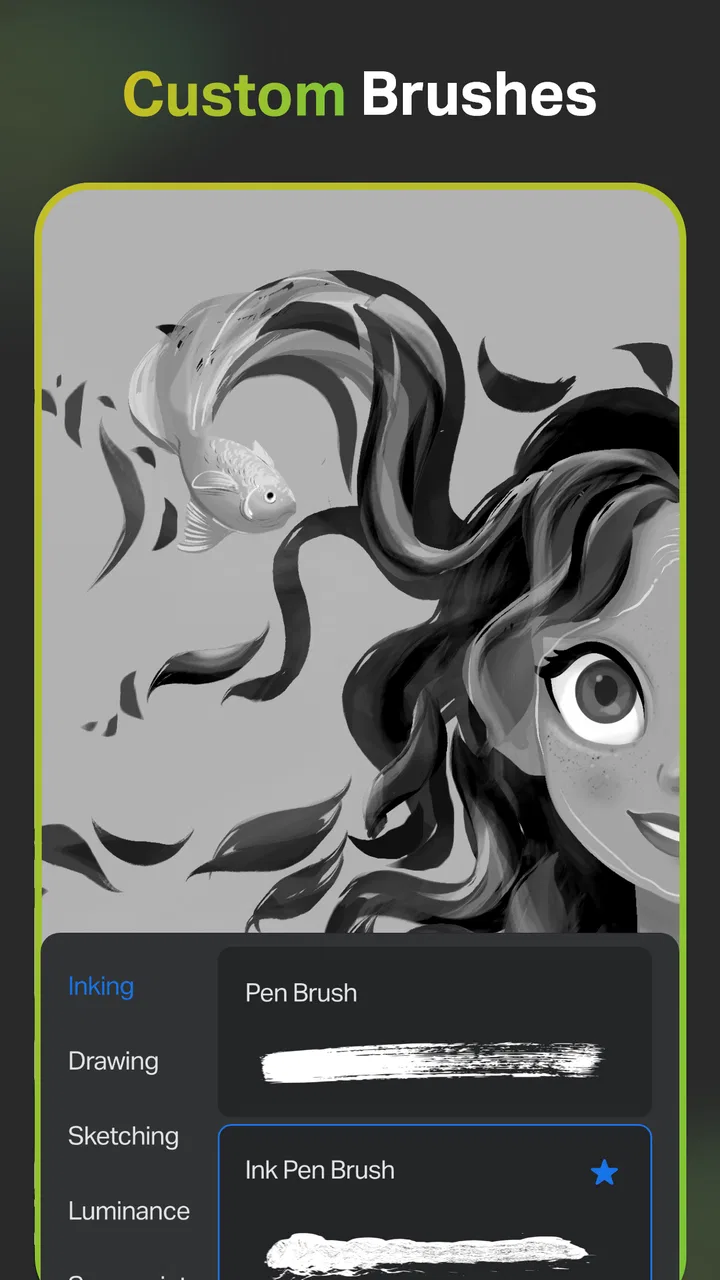
Sketch Pro provides a wide array of features including customizable brushes, layers, and blending modes. It also supports high-resolution canvases, enabling detailed artwork. The app includes a color palette tool, symmetry guides, and pressure sensitivity for stylus users, making it suitable for both beginners and professional artists.
02Is Sketch Pro suitable for beginners in digital art?
Yes, Sketch Pro is designed to be user-friendly for beginners while still offering advanced features for seasoned artists. It includes tutorials and a simple interface that helps new users learn digital art techniques without feeling overwhelmed. The app’s intuitive design ensures a smooth learning curve for novices.
03Does Sketch Pro support file export and sharing?
Sketch Pro allows users to export their artwork in various formats, including JPEG, PNG, and PSD, ensuring compatibility with other software. Users can also share their creations directly from the app to social media platforms or via email, making it easy to showcase their work instantly.
04Are there any in-app purchases or subscriptions in Sketch Pro?
Sketch Pro offers a free version with essential features, but it also provides in-app purchases for additional brushes, tools, and advanced options. There is a subscription model available that unlocks premium features such as cloud storage and exclusive content, giving users more flexibility in their artistic projects.
05What devices are compatible with Sketch Pro?
Sketch Pro is available for both Android and iOS devices. It is optimized to work smoothly on tablets and smartphones, providing a seamless experience regardless of screen size. The app also supports stylus input, enhancing precision and control for users who prefer drawing on tablets.
Pros
- Intuitive interface for easy navigation.
- Wide variety of brushes and tools.
- Supports high-resolution exports.
- Layer functionality for complex art.
- Regular updates with new features.
Cons
- Requires in-app purchases for full access.
- Occasional lag on low-end devices.
- Limited font options for text.
- No offline mode available.
- Ads in free version can be intrusive.

Sketch Pro: Draw & Create Art
Gallery